
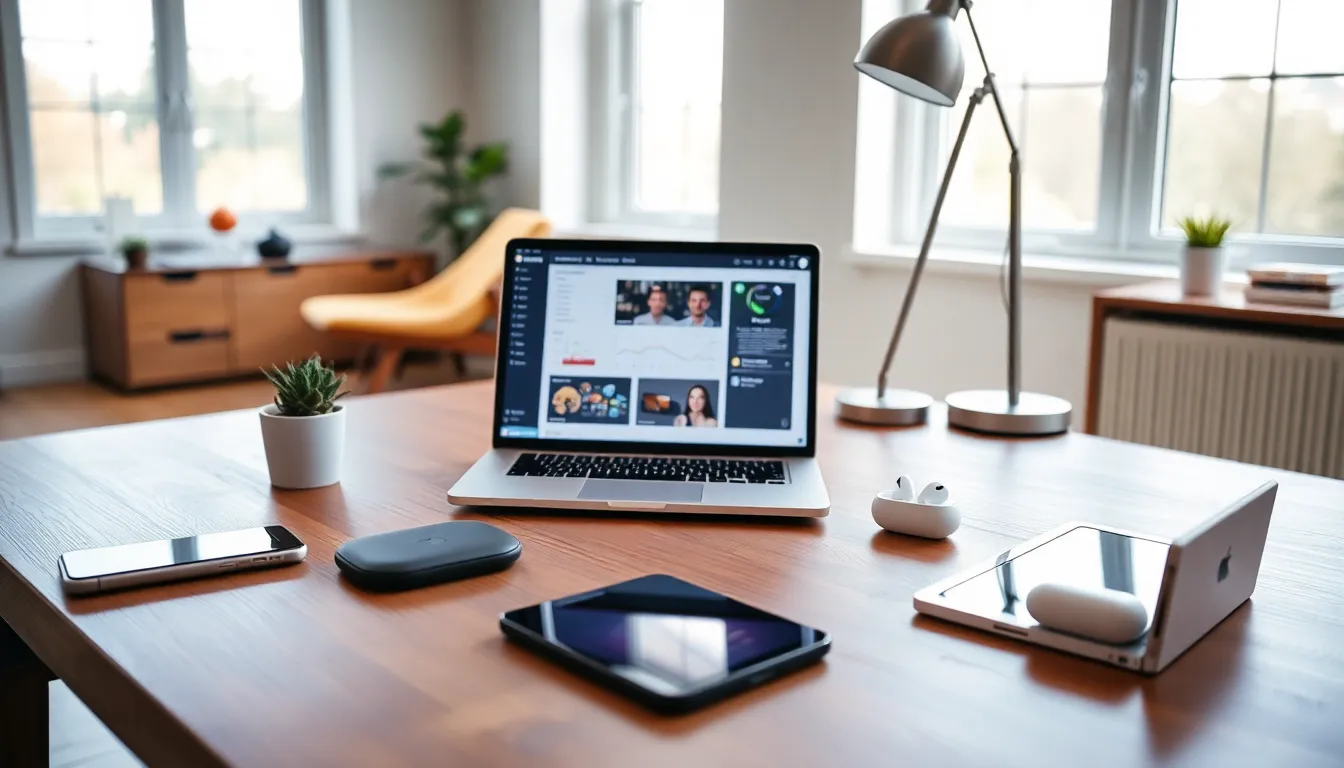
Smart gadgets tips can transform how people use their devices every day. Most users only scratch the surface of what their tech can do. They miss out on features, waste battery life, and leave their devices vulnerable to security threats.
This guide covers practical strategies to get more from smartphones, tablets, laptops, and other electronics. Whether someone just bought a new device or wants to breathe life into older tech, these gadgets tips will help them work smarter, not harder.
Table of Contents
ToggleKey Takeaways
- Enable automatic updates and use two-factor authentication to keep your gadgets secure from hackers.
- Extend battery life by lowering screen brightness, disabling unused features, and keeping your charge between 20% and 80%.
- Delete unused apps and organize files into folders to declutter your devices and improve performance.
- Learn essential shortcuts like Ctrl+C, Ctrl+V, and voice commands to save hours of time across all your gadgets.
- Follow the 3-2-1 backup rule: three copies of data, two storage types, one off-site copy to prevent data loss.
- Spend 10 minutes monthly exploring device settings to discover hidden features that boost productivity.
Keep Your Devices Updated and Secure
Software updates do more than add new features. They patch security holes that hackers actively exploit. Skipping updates is like leaving a door unlocked, eventually, someone will walk through.
Here’s a simple gadgets tips routine for staying current:
- Enable automatic updates on all devices. This removes the temptation to hit “remind me later” for the hundredth time.
- Check for firmware updates on routers, smart home devices, and peripherals. These often get overlooked but remain prime targets for attacks.
- Use a password manager to create unique, strong passwords for every account. Reusing passwords is one of the biggest security mistakes people make.
- Turn on two-factor authentication wherever possible. Yes, it adds an extra step. That extra step has stopped countless account breaches.
Security software matters too. Windows users should keep Defender active. Mac users aren’t immune to threats, built-in protections help, but awareness matters more. On phones, stick to official app stores and review permissions before installing anything.
One often-ignored gadgets tip: restart devices weekly. This clears temporary files, applies pending updates, and often fixes minor glitches. It takes 30 seconds and prevents hours of frustration.
Optimize Battery Life Across All Gadgets
Battery anxiety is real. Nobody wants their phone dying during an important call or their laptop shutting down mid-presentation. These gadgets tips extend battery life without sacrificing usability.
Adjust screen brightness. The display consumes more power than any other component. Use auto-brightness or manually lower it when indoors. On laptops, dimming the screen by 20% can add an hour of runtime.
Manage background apps. Social media apps constantly refresh, drain batteries, and eat data. Disable background refresh for apps that don’t need real-time updates. On Android, check battery usage stats to identify power-hungry culprits. iPhone users can find the same information in Settings > Battery.
Use dark mode. On devices with OLED screens, dark mode saves significant power because black pixels are actually turned off. It’s easier on the eyes too, a win-win.
Disable features when not in use. Bluetooth, Wi-Fi, GPS, and NFC all consume power when active. Turn them off when they aren’t needed. Most devices offer quick toggles in control centers or notification panels.
Charge smartly. Modern lithium batteries prefer staying between 20% and 80% charge. Constantly draining to zero or charging to 100% degrades battery health over time. Many phones now include features to stop charging at 80%, use them.
These gadgets tips won’t triple battery life, but they add meaningful hours to each charge cycle.
Organize and Declutter Your Digital Space
Digital clutter slows devices down and makes finding things frustrating. A little organization goes a long way toward a smoother tech experience.
Delete unused apps. Most people use fewer than 10 apps regularly but keep dozens installed. Each unused app takes storage space, may run background processes, and creates security risks. Be ruthless, delete anything untouched for three months.
Organize files into folders. Create a simple system that makes sense. Something like: Work, Personal, Photos, Downloads, Archive. The specific structure matters less than consistency. Stick with whatever system gets chosen.
Use cloud storage wisely. Services like Google Drive, iCloud, and Dropbox sync files across devices and free up local storage. Set up automatic photo backups to prevent losing memories if a device breaks or gets lost.
Clean up email. Unsubscribe from newsletters nobody reads. Create filters to auto-sort important messages. Archive or delete old emails, there’s no reason to keep that shipping confirmation from 2019.
Manage browser tabs and bookmarks. If more than 20 tabs stay open permanently, something’s wrong. Bookmark important pages, close the rest. Browser extensions like OneTab can save open tabs for later without the memory overhead.
These gadgets tips create breathing room. A decluttered device feels faster and more pleasant to use, even when the actual hardware hasn’t changed.
Learn Hidden Features and Shortcuts
Every gadget hides features most users never discover. Learning a few shortcuts saves hours over time.
Smartphone shortcuts worth knowing:
- Double-tap the back of newer iPhones to trigger custom actions
- Hold the spacebar on most phone keyboards to turn it into a trackpad
- Use voice commands for hands-free control, “Hey Siri” or “Hey Google” can set timers, send texts, and control smart home devices
- Take screenshots by pressing button combinations (varies by device)
Laptop productivity boosters:
- Learn five keyboard shortcuts: Ctrl+C, Ctrl+V, Ctrl+Z, Alt+Tab, and Ctrl+F cover 80% of common needs
- Use virtual desktops to separate work and personal tasks
- Master the search function, it’s faster than clicking through folders
Smart home gadgets tips:
- Group devices by room for easier voice control
- Create automation routines (lights off at bedtime, thermostat adjusts when everyone leaves)
- Check manufacturer apps for firmware updates and new features
The best approach? Pick one new shortcut or feature each week. Practice it until it becomes automatic. Then add another. Small improvements compound into major productivity gains.
Most gadgets tips focus on what to do. This one focuses on how to learn: spend 10 minutes exploring device settings monthly. There’s almost always something useful hiding in there.
Maintain and Protect Your Tech Investments
Gadgets aren’t cheap. Proper care extends their lifespan and protects the investment.
Physical protection basics:
- Use cases and screen protectors on phones and tablets
- Keep liquids away from laptops and keyboards
- Store devices away from extreme temperatures, batteries hate heat
- Clean screens with microfiber cloths, not paper towels or harsh chemicals
Regular maintenance tasks:
- Clear cache and temporary files monthly
- Run disk cleanup utilities on computers
- Check storage space and delete large files when needed
- Inspect charging cables for fraying, damaged cables can harm devices or cause fires
Backup everything important. Follow the 3-2-1 rule: three copies of important data, on two different types of storage, with one copy off-site (cloud counts). Hard drives fail. Phones get stolen. Backups prevent disasters from becoming catastrophes.
Know when to repair vs. replace. A cracked screen often costs less to fix than buying new. But a five-year-old laptop with failing components might not justify repair costs. Research repair options before assuming replacement is the only answer.
These gadgets tips protect both the hardware and the data stored on it. Prevention costs far less than recovery.


