
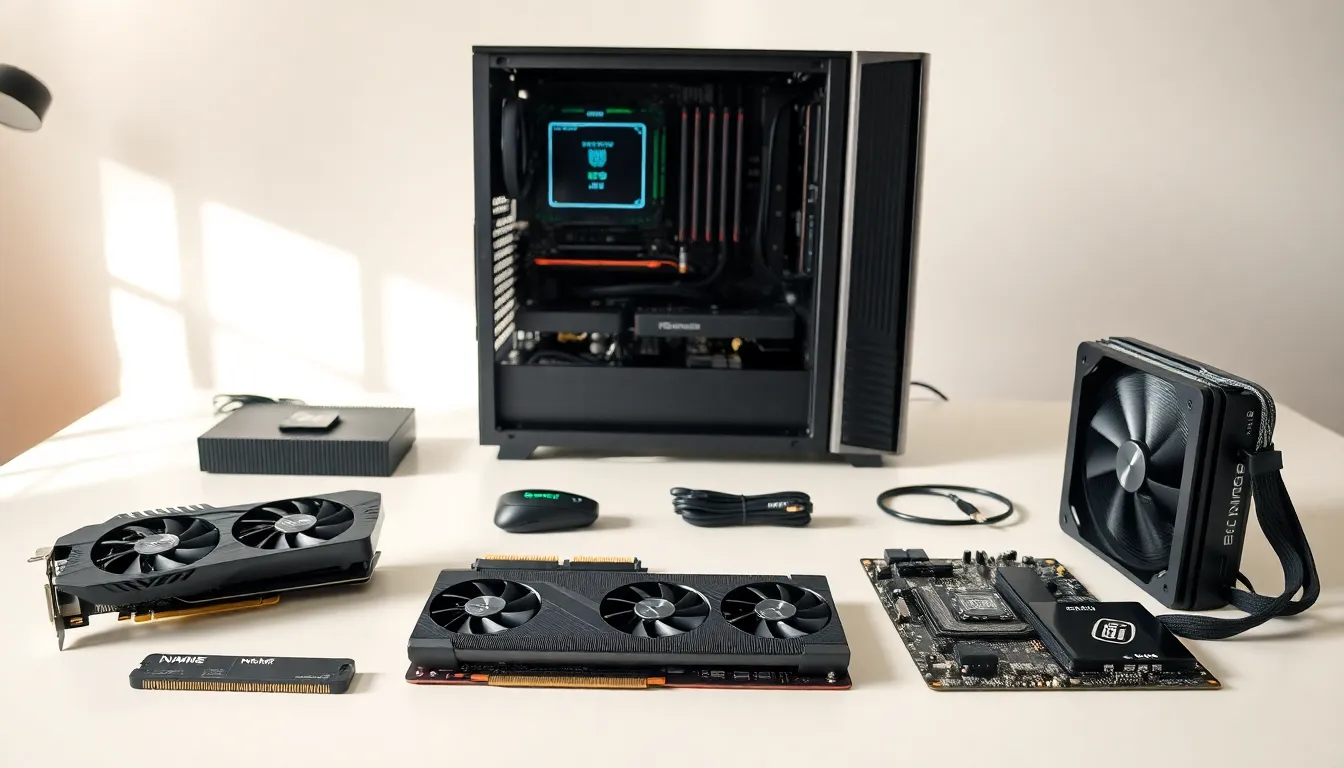
Building or upgrading a computer starts with understanding the right hardware guide for your needs. Whether someone is assembling their first PC or replacing aging components, knowing what each part does, and how to choose between options, makes a real difference in performance and value.
This hardware guide breaks down the essential components that power every computer. It covers how to match hardware to specific use cases, from gaming rigs to office workstations. Readers will also find practical tips for keeping their systems running smoothly and knowing when upgrades make sense.
Table of Contents
ToggleKey Takeaways
- A solid hardware guide helps you match components like CPUs, GPUs, RAM, and storage to your specific needs—whether gaming or office work.
- Gaming builds prioritize a powerful GPU (like NVIDIA RTX 4070 or AMD RX 7800 XT) paired with 32GB RAM and fast NVMe SSD storage.
- Office and everyday computers run efficiently with integrated graphics, 8–16GB RAM, and a 500GB SSD—no dedicated GPU required.
- Regular maintenance, including dust removal every 3–6 months and temperature monitoring, extends component lifespan and prevents overheating.
- Upgrade RAM or storage first for easy performance gains; GPU upgrades deliver the biggest boost for gamers.
- Always back up data using the 3-2-1 rule: three copies, two media types, one stored offsite.
Understanding Essential Computer Hardware Components
Every computer relies on a set of core hardware components working together. Understanding what each part does helps buyers make smarter decisions and troubleshoot problems faster.
Central Processing Unit (CPU)
The CPU handles all instructions a computer receives. Think of it as the brain of the system. Modern CPUs from Intel and AMD offer multiple cores, which allow them to process several tasks at once. Clock speed, measured in gigahertz (GHz), indicates how fast a processor completes operations. A higher core count and clock speed typically mean better performance.
Graphics Processing Unit (GPU)
The GPU renders images, videos, and animations. Dedicated graphics cards from NVIDIA and AMD deliver far more power than integrated graphics built into CPUs. Gamers, video editors, and 3D designers rely heavily on strong GPUs. For basic tasks like web browsing and document editing, integrated graphics usually work fine.
Random Access Memory (RAM)
RAM stores data the CPU needs to access quickly. More RAM allows a system to run more programs simultaneously without slowing down. Most users find 16GB sufficient for everyday tasks. Power users and gamers often benefit from 32GB or more.
Storage Drives
Storage comes in two main types: solid-state drives (SSDs) and hard disk drives (HDDs). SSDs read and write data much faster than HDDs, which makes them ideal for operating systems and frequently used programs. HDDs cost less per gigabyte and work well for storing large files like videos and backups.
Motherboard
The motherboard connects all components together. It determines which CPUs, RAM types, and expansion cards a system can use. Buyers should match their motherboard to their chosen CPU socket type and ensure it has enough slots for their planned upgrades.
Power Supply Unit (PSU)
The PSU converts electricity from an outlet into power the computer can use. Wattage matters, a system with a powerful GPU needs more watts. Efficiency ratings like 80 Plus Bronze, Gold, or Platinum indicate how much power gets wasted as heat.
Choosing the Right Hardware for Your Needs
Selecting hardware depends entirely on how someone plans to use their computer. A gaming PC requires different specs than an office workstation. This hardware guide breaks down both scenarios.
Gaming and High-Performance Builds
Gamers need hardware that handles demanding graphics and fast frame rates. A mid-range to high-end GPU sits at the center of any gaming build. Cards like the NVIDIA RTX 4070 or AMD RX 7800 XT deliver smooth performance at 1440p resolution.
The CPU matters too, though most modern games rely more on the GPU. An Intel Core i5 or AMD Ryzen 5 processor handles current titles well. Pairing these with 32GB of DDR5 RAM ensures the system won’t bottleneck during intense sessions.
Fast storage speeds up load times dramatically. A 1TB NVMe SSD gives gamers plenty of space for several large games while keeping everything snappy. Many builders add a secondary HDD for older titles and media files.
Cooling deserves attention in high-performance builds. Powerful components generate significant heat. A quality air cooler or all-in-one liquid cooler keeps temperatures in check and prevents throttling.
Everyday Use and Office Setups
Office computers and general-use machines have simpler requirements. Integrated graphics handle web browsing, email, spreadsheets, and video streaming without issue. This eliminates the need for a dedicated GPU entirely.
A modern Intel Core i3 or AMD Ryzen 3 CPU provides plenty of power for these tasks. Pairing it with 8GB to 16GB of RAM keeps the system responsive during multitasking. Users who run many browser tabs or work with large spreadsheets should lean toward 16GB.
Storage needs vary by user. A 500GB SSD holds the operating system and common programs comfortably. Those who store lots of documents or photos might consider a 1TB drive or add external storage.
Office builds can use smaller, more efficient power supplies. A 450W to 550W PSU with 80 Plus certification works well and keeps electricity costs down.
Tips for Maintaining and Upgrading Your Hardware
Hardware lasts longer and performs better with regular maintenance. A few simple habits prevent common problems and extend the life of expensive components.
Keep Components Clean
Dust accumulates inside computer cases over time. It clogs fans, blocks airflow, and causes components to overheat. Cleaning the interior with compressed air every three to six months prevents buildup. Users should power down and unplug the system before cleaning.
Monitor Temperatures
Free software like HWMonitor or Core Temp displays CPU and GPU temperatures in real time. If temperatures regularly exceed 80°C under load, the cooling system may need attention. Reapplying thermal paste or adding case fans often solves heat issues.
Update Drivers and Firmware
Manufacturers release driver updates that improve performance and fix bugs. GPU drivers from NVIDIA and AMD come out regularly. Motherboard BIOS updates occasionally add features or improve compatibility. Users should check for updates every few months.
Know When to Upgrade
Hardware doesn’t last forever. Signs that an upgrade makes sense include slow performance in new software, long load times, and games that no longer run smoothly. RAM and storage upgrades offer the easiest improvements, they often require minimal technical skill.
GPU upgrades deliver the most noticeable boost for gamers. CPU upgrades sometimes require a new motherboard if the socket type has changed. Planning upgrades around component compatibility saves money and frustration.
Backup Important Data
All storage drives eventually fail. Regular backups to external drives or cloud services protect important files. The 3-2-1 rule works well: keep three copies of data, on two different types of media, with one copy stored offsite.


