
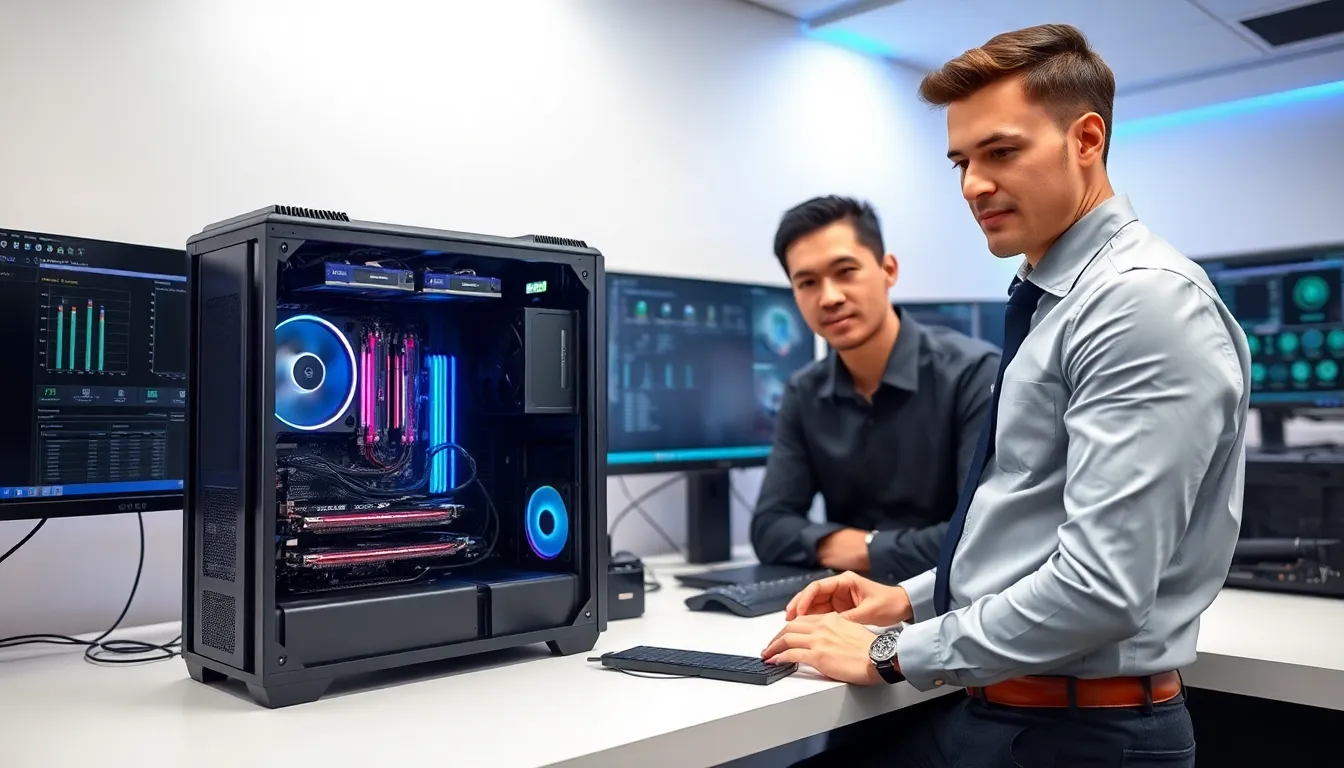
Hardware techniques shape how modern computing systems perform, last, and handle demanding workloads. Whether someone builds gaming rigs, manages enterprise servers, or simply wants a faster home PC, understanding these methods makes a real difference.
This guide covers the core hardware techniques every tech enthusiast and IT professional should know. From optimization fundamentals to thermal management, these practical strategies help systems run better and longer. No fluff, just actionable methods that work.
Table of Contents
ToggleKey Takeaways
- Hardware techniques like bottleneck identification and component matching ensure balanced system performance and prevent one part from limiting the rest.
- Use diagnostic tools such as MemTest86, CrystalDiskInfo, and GPU-Z to uncover hardware issues that casual use won’t reveal.
- Upgrading from an HDD to an SSD remains one of the most impactful hardware techniques, dramatically reducing boot times and improving application speed.
- Effective thermal management—including proper airflow, quality cooling solutions, and correct thermal paste application—extends component lifespan and maintains peak performance.
- Regular maintenance like dust removal every 3-6 months, firmware updates, and using a UPS for backup power prevents failures before they happen.
- Undervolting reduces heat and power consumption while maintaining performance, making it especially valuable for laptops and compact builds.
Understanding Hardware Optimization Fundamentals
Hardware optimization starts with knowing what components do and how they interact. The CPU, RAM, storage drives, and GPU each have specific roles. When one bottlenecks, the whole system slows down.
Identifying Bottlenecks
A bottleneck occurs when one component limits the performance of others. For example, pairing a high-end GPU with an outdated CPU creates an imbalance. The GPU waits for data the CPU can’t process fast enough. Hardware techniques for spotting bottlenecks include monitoring software like HWiNFO or Task Manager’s performance tab.
Component Matching
Balanced builds perform better than lopsided ones. A good rule: the CPU and GPU should be within the same performance tier. RAM speed and capacity matter too, 16GB at 3200MHz suits most workloads in 2025, though content creators and gamers often benefit from 32GB.
BIOS/UEFI Settings
Many hardware techniques live in the BIOS. Enabling XMP (Extreme Memory Profile) unlocks RAM’s full speed. Adjusting power limits can boost CPU performance. These settings don’t cost anything but deliver measurable gains.
Common Hardware Troubleshooting Techniques
Systems fail. Components die. Hardware techniques for troubleshooting save time, money, and frustration.
The Elimination Method
When a PC won’t boot, isolate the problem. Remove all non-essential components, extra RAM sticks, secondary drives, discrete GPUs. If it boots with minimal hardware, add components back one at a time until the culprit appears.
Visual Inspection
Look before testing. Bulging capacitors, burn marks, or loose cables cause many failures. Dust buildup blocks airflow and causes overheating. A flashlight and close inspection catch issues diagnostic software misses.
POST Code Analysis
Modern motherboards display POST codes during startup. These two-digit codes indicate where the boot process fails. A code pointing to memory means RAM issues. One pointing to storage suggests drive problems. The motherboard manual decodes these signals.
Hardware Diagnostic Tools
Software-based hardware techniques include:
- MemTest86 for RAM testing
- CrystalDiskInfo for drive health
- GPU-Z for graphics card monitoring
- Prime95 for CPU stress testing
These tools reveal problems that casual use doesn’t expose.
Performance Enhancement Strategies
Beyond buying new parts, several hardware techniques boost existing system performance.
Overclocking
Overclocking pushes components beyond factory speeds. CPUs, GPUs, and RAM can all be overclocked. The tradeoff: more heat and potentially shorter lifespan. Start with small increases, a 5% boost is safer than jumping to 20%. Monitor temperatures throughout.
Storage Upgrades
Swapping an HDD for an SSD remains one of the most impactful hardware techniques. Boot times drop from minutes to seconds. Applications launch faster. NVMe drives take this further, with read speeds exceeding 7,000 MB/s on PCIe 5.0 models.
RAM Optimization
More RAM helps, but so does faster RAM. Ryzen processors particularly benefit from high-speed memory. Enabling XMP in BIOS ensures RAM runs at its rated speed rather than default JEDEC specifications.
Undervolting
This often-overlooked hardware technique reduces power consumption while maintaining performance. Lower voltage means less heat, which can actually allow higher sustained clock speeds. Laptops especially benefit from undervolting.
Thermal Management and Cooling Methods
Heat kills components. Effective thermal management extends hardware life and maintains performance.
Air Cooling
Air coolers use heatsinks and fans to dissipate heat. Tower coolers like the Noctua NH-D15 rival many liquid cooling solutions. They’re reliable, have no pump to fail, and require minimal maintenance. Good hardware techniques for air cooling include proper fan orientation, intake at front and bottom, exhaust at rear and top.
Liquid Cooling
All-in-one (AIO) liquid coolers offer better cooling than most air coolers in a compact form. Custom loops provide the best thermal performance but require maintenance and carry leak risks. For most users, a quality AIO balances performance and convenience.
Thermal Paste Application
Thermal paste fills microscopic gaps between the CPU and cooler. Too little leaves air pockets. Too much can spill over and cause issues. A pea-sized dot in the center works for most CPUs. Reapply paste every 3-5 years or when temperatures rise unexpectedly.
Case Airflow
The best cooler can’t compensate for poor case airflow. Mesh front panels outperform solid glass. Cable management keeps pathways clear. Positive pressure (more intake than exhaust fans) reduces dust accumulation inside the case.
Best Practices for Hardware Maintenance
Regular maintenance prevents problems before they start. These hardware techniques keep systems running smoothly.
Dust Removal
Dust acts as an insulator, trapping heat. Clean systems every 3-6 months, depending on the environment. Compressed air works well. Electric air blowers provide unlimited, stronger airflow. Hold fans stationary while cleaning to prevent bearing damage.
Cable Management
Organized cables improve airflow and make troubleshooting easier. Velcro straps beat zip ties, they’re reusable and don’t cut into cables. Route cables behind the motherboard tray when possible.
Firmware Updates
BIOS updates fix bugs, add features, and improve compatibility. GPU driver updates often boost game performance significantly. Check for updates monthly, but don’t update immediately after release, wait a week to ensure stability.
Backup Power Protection
A UPS (Uninterruptible Power Supply) protects hardware from power surges and outages. Sudden power loss can corrupt drives and damage components. Even a basic UPS provides enough time for safe shutdown during outages.
Documentation
Record system specifications, BIOS settings, and any modifications. This information proves invaluable when troubleshooting or upgrading. A simple spreadsheet or notes app works fine.


