
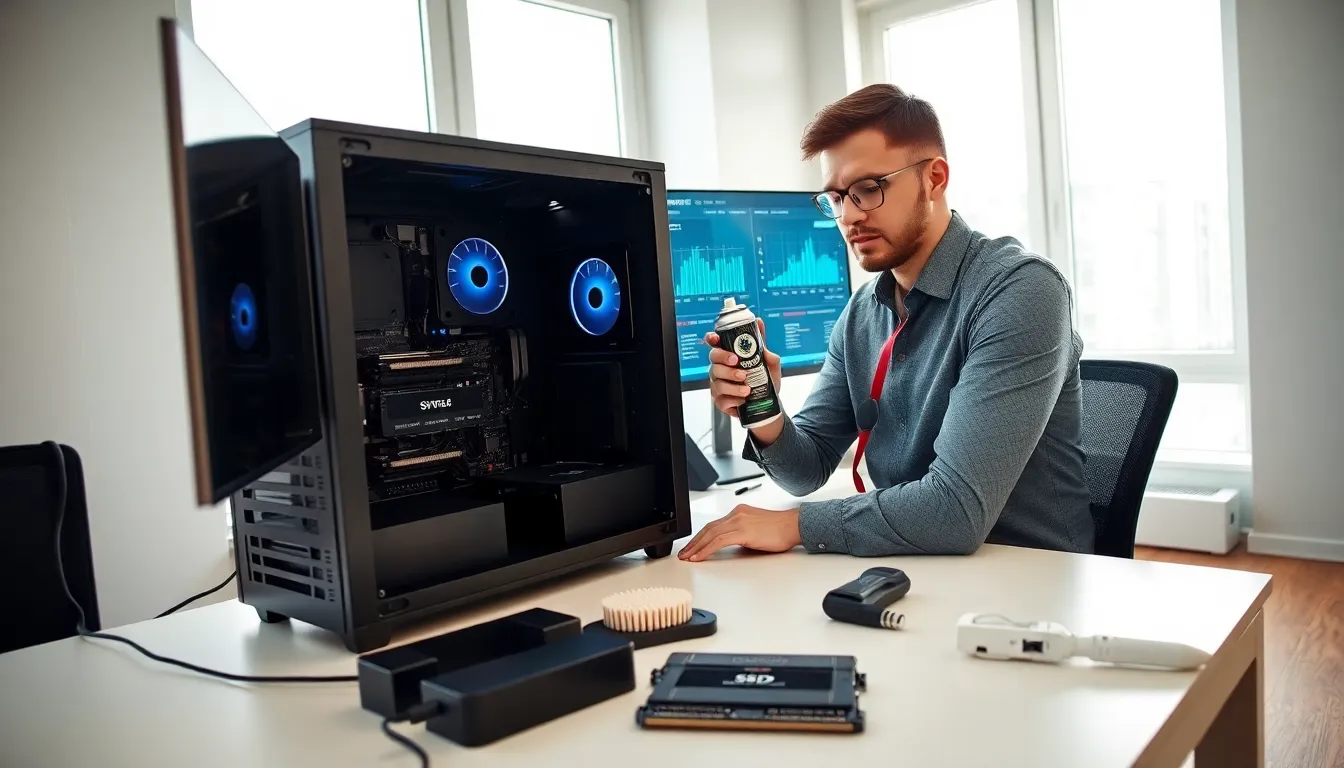
Hardware tips can mean the difference between a system that lasts five years and one that struggles after two. Most users focus entirely on software optimization while ignoring the physical components that power their machines. This oversight costs them money, performance, and frustration.
Whether someone owns a gaming PC, workstation, or everyday laptop, hardware maintenance directly impacts speed, reliability, and lifespan. The good news? Most essential hardware tips require minimal technical knowledge and just a few hours per year. This guide covers the key practices that keep systems running at peak performance for years to come.
Table of Contents
ToggleKey Takeaways
- Clean dust from your hardware every 3–6 months to reduce operating temperatures by 10–15°C and extend component lifespan.
- Monitor CPU and GPU temperatures using free tools like HWMonitor to catch overheating before it causes throttling or damage.
- RAM upgrades from 8GB to 16GB or 32GB often deliver the most noticeable performance boost for everyday users.
- Always ground yourself before touching internal components to prevent static electricity from destroying sensitive hardware.
- Use surge protectors or a UPS to protect your system from power spikes and ensure safe shutdowns during outages.
- Check compatibility, power supply wattage, and potential bottlenecks before investing in any hardware upgrade.
Keep Your Hardware Clean and Dust-Free
Dust is hardware’s silent killer. It accumulates on fans, heatsinks, and vents, creating an insulating layer that traps heat. Over time, this buildup forces components to work harder and run hotter than designed.
For desktop computers, users should open the case every three to six months and use compressed air to blow out dust. Focus on the CPU cooler, GPU fans, power supply vents, and case fans. A soft brush helps dislodge stubborn particles from heatsink fins.
Laptops require more careful attention. Their compact designs make dust removal trickier, but it’s equally important. Users can blow compressed air through the exhaust vents at a 45-degree angle. For deeper cleaning, removing the bottom panel (on user-serviceable models) provides access to internal fans and heatsinks.
Some additional hardware tips for dust prevention include:
- Place computers on hard surfaces rather than carpet
- Keep systems away from pet areas when possible
- Consider positive air pressure configurations for desktops
- Use dust filters on intake fans
Regular cleaning alone can reduce operating temperatures by 10-15 degrees Celsius. That translates directly to better performance and longer component life.
Monitor and Manage System Temperatures
Heat damages electronics. Every component has a thermal threshold, and consistently exceeding it shortens lifespan dramatically. CPUs and GPUs throttle their speeds when they get too hot, causing noticeable slowdowns during demanding tasks.
Free software like HWMonitor, Core Temp, or Open Hardware Monitor displays real-time temperature readings. Users should check these values during normal use and under load (gaming, video editing, or other intensive work).
Here are general temperature guidelines for common hardware:
| Component | Idle Temperature | Load Temperature |
|---|---|---|
| CPU | 30-45°C | 60-80°C |
| GPU | 30-40°C | 65-85°C |
| SSD | 25-40°C | 40-60°C |
If temperatures consistently exceed these ranges, several hardware tips can help. First, verify that all fans spin properly and aren’t blocked. Second, check that thermal paste between the CPU and cooler hasn’t dried out, replacement every three to five years is reasonable. Third, improve case airflow by managing cables and ensuring intake and exhaust fans create efficient air circulation.
Ambient room temperature matters too. Systems in hot environments naturally run warmer. Air conditioning or positioning computers away from heat sources makes a measurable difference.
These hardware tips for temperature management pay dividends through faster sustained performance and components that last their full expected lifespan.
Upgrade Components Strategically
Not all upgrades deliver equal value. Smart hardware tips focus on identifying bottlenecks before spending money.
RAM upgrades often provide the most noticeable improvement for everyday users. Systems running 8GB frequently hit limits with modern browsers and applications. Jumping to 16GB or 32GB eliminates slowdowns caused by memory swapping to disk.
Storage upgrades rank second in impact. Replacing a traditional hard drive with an SSD transforms system responsiveness. Boot times drop from minutes to seconds. Applications launch almost instantly. For users already running SATA SSDs, NVMe drives offer another speed tier, though the real-world difference varies by use case.
GPU upgrades matter most for gamers and creative professionals. But, the CPU and power supply must support the new graphics card. Installing a high-end GPU in a system with a weak processor creates a bottleneck where performance hits a wall.
Before any upgrade, users should:
- Check compatibility with existing components
- Verify the power supply has adequate wattage and correct connectors
- Research whether the current system will bottleneck the new part
- Compare cost versus building or buying a new system entirely
These hardware tips prevent wasted money on upgrades that don’t match the rest of the system. Sometimes waiting and saving for a more complete upgrade makes better financial sense.
Practice Safe Handling and Maintenance
Static electricity destroys sensitive components instantly. Before touching any internal hardware, users should ground themselves by touching a metal part of the case while it’s plugged in (but powered off). Anti-static wrist straps provide extra protection during extended work.
When handling components, avoid touching gold contacts on RAM sticks, GPUs, and other expansion cards. These contacts connect to the motherboard and transfer easily damaged signals. Hold components by their edges or non-contact areas.
Cables deserve attention too. Loose power or data connections cause intermittent problems that frustrate users and waste troubleshooting time. Periodically checking that all cables are firmly seated prevents these issues.
Power protection represents another essential set of hardware tips. Surge protectors guard against voltage spikes from lightning or grid fluctuations. Uninterruptible power supplies (UPS) go further by providing battery backup during outages, allowing safe shutdowns instead of sudden power loss. Hard drives and SSDs especially benefit from clean shutdowns rather than abrupt power cuts.
Firmware and driver updates also fall under maintenance. Manufacturers release updates that fix bugs, improve performance, and address security vulnerabilities. Checking for BIOS updates, SSD firmware patches, and GPU driver releases quarterly keeps hardware running optimally.
These hardware tips for safe handling cost nothing but save expensive replacement costs and data loss headaches.


